Auto attendant script examples (40 phone menu scripts)
An auto attendant script is the first thing most callers hear from your business, and it's usually the last thing anyone rewrote. A clear one gets callers to the right person in seconds. A rambling one makes them press 0 over and over, or hang up.
Below are 40 auto attendant script examples you can copy and edit: main menus, after hours, holidays, department menus, multiple locations, bilingual lines, six industries and the small fallback prompts most people forget. Swap in your details wherever you see brackets.
TL;DR:
- An auto attendant script has five parts: a one-line welcome, three to five options, a way to reach a person, a repeat option on longer menus, and a plan for callers who press nothing.
- Say the reason before the key: "For billing, press 2," not "Press 2 for billing." Callers listen for their reason, then the number.
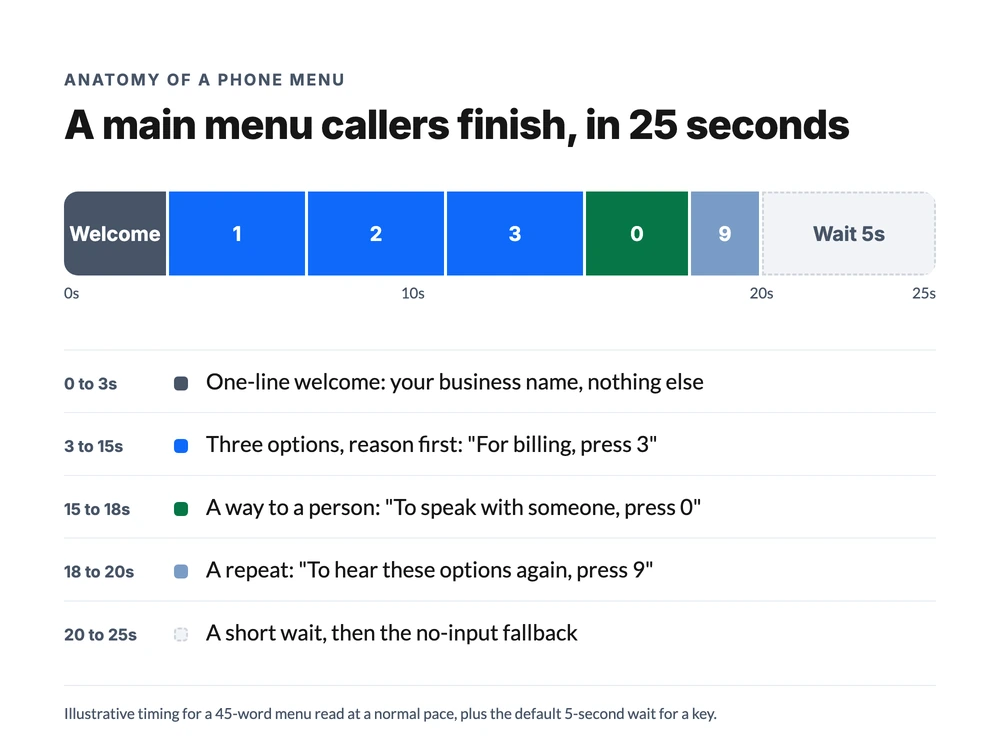
- Keep what the main menu says under 20 seconds, roughly 30 to 50 words. With a 5-second wait for a key, that's about 25 seconds in all.
- Put the most common reason for calling on key 1. Save 0 for a person, and always offer one.
- A phone tree only routes. If most callers just need an answer or a booking, an AI agent on one menu option can handle that part.
What is an auto attendant script?
An auto attendant script is the recorded or text-to-speech wording your phone menu plays when it answers a call: a welcome, the options and their keys, and what happens if the caller does nothing. It's the same thing people call an IVR script or a phone menu script, so everything below doubles as a set of IVR script examples. Its only job is to get the caller to the right place fast.
A lot of menus try to do three jobs at once. They welcome, they advertise, and they route. Only the routing matters to the caller. If you've never mapped how your calls move once a key is pressed, our guide to call routing explains the pieces behind the menu.
How to write an auto attendant script that callers finish
Most bad phone menus break the same five rules. Here's the order that works:
- Welcome in one sentence. Business name, nothing else. "Thanks for calling Lakeview Dental." The caller's first question is "did I dial the right place?" Answer it and move on.
- Reason first, then the key. "For appointments, press 1." People listen for their reason. If the key comes first, they have to hold a number in their head until they hear whether it applies.
- Three to five options. More than that and callers forget option one by the time they hear option six. Need more? Split them into a sub-menu.
- Most common reason on 1. Look at why people actually call. If 60% want to book, booking goes first, even if sales would rather be first.
- A way out. "To speak with someone, press 0" and "To hear these options again, press 9." Then decide what happens when a caller presses nothing at all, because some won't.
One opinion we'll stand behind: always offer a person. A menu with no way to a human doesn't save time, because the frustration just shows up later, when the caller finally reaches someone.
Auto attendant script examples for every situation
Each main menu below takes 10 to 20 seconds to read at a normal pace. The fallback prompts at the end take under 10. Not sure if yours runs long? Read it out loud once before you use it, because a sentence that looks fine on screen can sound long when a caller is waiting.
Main menu greetings
These auto attendant greeting examples are your everyday default for business hours.
1. The standard three-option menu
Thanks for calling [Business]. For sales, press 1. For customer support, press 2. For billing, press 3. To speak with someone at the front desk, press 0. To hear these options again, press 9.
2. The two-option small business menu
Thanks for calling [Business]. If you'd like to book a new appointment, press 1. For anything else, press 2 and we'll connect you. To hear this again, press 9.
3. The new or existing customer split
Thanks for calling [Business]. If you're a new customer, press 1 and we'll get you a quote. If you're an existing customer, press 2. To reach the office, press 0.
4. The menu that points to texting
Thanks for calling [Business]. To book or change an appointment, press 1. For billing, press 2. To speak with someone, press 0. For the fastest reply, you can also text this number any time.
5. The sales-led menu
Thanks for calling [Business]. If you're interested in [product or service] and want pricing, press 1 to talk with our team now. For support with an existing order, press 2. For anything else, press 0.
6. The short menu for busy lines
You've reached [Business]. Sales, press 1. Support, press 2. Anyone else, press 0.
After-hours auto attendant scripts
After hours, the menu has one extra job: tell people when you're open again, and give urgent callers a route.
7. Closed, with hours
Thanks for calling [Business]. Our office is closed right now. We're open [days] from [time] to [time]. To leave a message for a callback first thing tomorrow, press 1. To hear our hours again, press 9.
8. Closed, with an emergency line
Thanks for calling [Business]. We're closed for the day. If this is an emergency, such as [example], press 1 to reach our on-call team. For everything else, press 2 to leave a message, and we'll call you back by [time] tomorrow.
9. Messages by department
Thanks for calling [Business]. We're closed right now and reopen at [time]. To leave a message for sales, press 1. For support, press 2. For billing, press 3.
10. The lunch-hour menu
Thanks for calling [Business]. Our team is on lunch until [time]. To leave a message, press 1, and we'll call you back this afternoon.
11. The weekend menu
Thanks for calling [Business]. We're closed for the weekend and reopen [day] at [time]. To request a callback on [day] morning, press 1. For urgent [type of issue], press 2.
Holiday and closure scripts
A holiday menu is the one most likely to go stale. Set a reminder to switch it back the day you reopen.
12. The general holiday closure
Thanks for calling [Business]. Our office is closed for [holiday] and reopens on [day, date] at [time]. To leave a message, press 1. We'll return every call in the order it came in.
13. The end-of-year closure
Thanks for calling [Business]. We're closed from [date] through [date] for the holidays. We reopen [date] at [time]. To leave a message, press 1. For urgent [issue], press 2. Happy holidays from all of us.
14. The weather closure
Thanks for calling [Business]. Because of today's weather, our office is closed. We expect to reopen [day] at [time]. To leave a message, press 1. For emergencies, press 2.
15. The early close
Thanks for calling [Business]. We're closing early today at [time] for [reason, such as staff training]. Before then, press 1 to reach the team. After [time], press 2 to leave a message, and we'll call you back tomorrow morning.
16. The seasonal hours change
Thanks for calling [Business]. Our [season] hours are [days] from [time] to [time]. For [most common reason], press 1. For anything else, press 2. To hear our hours again, press 9.
Department sub-menu scripts
A sub-menu is a second, shorter menu behind one option. Use it instead of a main menu with eight choices, and keep 0 pointed at a person in every one.
17. Support sub-menu
You've reached support. For help with [product or account issue], press 1. To check on an existing request, press 2. To speak with someone, press 0. To return to the main menu, press star.
18. Billing sub-menu
You've reached billing. To make a payment, press 1. For a question about a charge, press 2. To speak with someone, press 0. To return to the main menu, press star.
19. Sales sub-menu
You've reached our sales team. For pricing on [service A], press 1. For [service B], press 2. To talk with whoever's free, press 0.
20. Scheduling sub-menu
You've reached scheduling. To book a new appointment, press 1. To change or cancel one, press 2. To speak with someone, press 0. To return to the main menu, press star.
21. Returning-caller sub-menu
Welcome back. If you're calling about a job we're already working on, press 1 and we'll connect you with your project lead. To start something new, press 2. For anyone else, press 0.
Multi-location auto attendant scripts
When one number serves several offices, the location goes first. Most callers know which office they want before they know which department.
22. Pick your location
Thanks for calling [Business]. For our [City A] office, press 1. For [City B], press 2. For [City C], press 3. If you're not sure which office serves you, press 0 and we'll help.
23. Location, then service
This one is two menus. The main menu picks the office:
Thanks for calling [Business]. For [City A], press 1. For [City B], press 2. For anyone else, press 0.
Then each office gets its own short sub-menu:
You've reached [City A]. To book, press 1. For an existing appointment, press 2. To speak with someone, press 0.
24. Regional routing
Thanks for calling [Business]. If you're in [region or state A], press 1. If you're in [region B], press 2. For anywhere else, press 3 and we'll find the right team.
25. Maintenance line by property
Thanks for calling [Business] maintenance. If water, gas or electricity is causing damage right now, press 1 for our emergency line. For [property A], press 2. For [property B], press 3. For anything else, press 0.
Bilingual auto attendant scripts
Offer the language choice first, in both languages, before any other option. Then record or write each language's menu in full rather than mixing both into one long prompt.
26. English and Spanish
Thanks for calling [Business]. For English, press 1. Para español, oprima el dos.
27. Spanish first, for a Spanish-first market
Gracias por llamar a [Business]. Para español, oprima el uno. For English, press 2.
28. English and French
Thanks for calling [Business]. For service in English, press 1. Pour le service en français, appuyez sur le 2.
29. Bilingual after hours
Thanks for calling [Business]. We're closed and reopen at [time]. To leave a message in English, press 1. Para dejar un mensaje en español, oprima el dos.
Auto attendant script examples by industry
30. Dental office
Thanks for calling [Practice]. To book a cleaning or checkup, press 1. If you're in pain or have a dental emergency, press 2. For billing and insurance questions, press 3. For the front desk, press 0.
31. Plumbing or HVAC
Thanks for calling [Business]. If you have a leak, no heat or no hot water right now, press 1 and we'll connect you with a technician. To book a regular service visit, press 2. For a quote on new work, press 3. For anything else, press 0.
32. Law firm
Thanks for calling [Firm]. If you're a new client and need help with a legal matter, press 1. If you're a current client, press 2. For all other calls, press 0.
33. Salon or spa
Thanks for calling [Salon]. To book, change or cancel an appointment, press 1. For product questions or gift cards, press 2. To speak with the front desk, press 0.
34. Auto repair shop
Thanks for calling [Shop]. To book a repair or inspection, press 1. To check on a car that's already with us, press 2. For parts, press 3. For anything else, press 0.
35. Restaurant
Thanks for calling [Restaurant]. For reservations, press 1. For takeout orders, press 2. For catering and private events, press 3. To speak with someone, press 0. Our hours are [hours].
36. Property management office
Thanks for calling [Company]. If something is causing damage right now, press 1 for our emergency line. To report a maintenance issue, press 2. For rent and payments, press 3. If you're interested in renting with us, press 4. For the office, press 0.
Fallback and transfer prompts
These are the short prompts that play when something goes sideways. Leave them out and many phone systems simply hang up on the caller.
37. Invalid key
Sorry, that's not one of the options. Let's try again.
38. No key pressed
We didn't catch a choice. Connecting you to our front desk now.
39. Transferring
Thanks. Connecting you now. If nobody's free, you'll be able to leave a message.
40. Queue wait message
Everyone on our team is with another caller. Please stay on the line and we'll be with you shortly. You can also hang up and text this number, and we'll reply in the order messages come in.
Phone menu mistakes that make callers hang up
The worst menus waste the first 10 seconds:
- "Please listen carefully, as our menu options have changed." Everyone says it, and it almost never matters. Cut it.
- Ads before the options. "Did you know we now offer..." The caller already chose to call. Let them through.
- The key before the reason. "Press 1 for sales" forces callers to remember a number before they know if they need it.
- Eight options in one menu. Nobody remembers option one by option eight. Split it into a sub-menu.
- No route to a person. If 0 does nothing, callers will press it anyway, and then they'll hang up.
- Holiday menus left running. A "closed for Thanksgiving" menu in December tells callers nobody checks this line.
Ray, who runs operations for a property management company with four offices, had a menu that did almost all of these. Tenants calling about a leak at 11 p.m. sat through an ad for online rent payments, then six options, before they heard "press 9 for emergencies." Some never got that far. Moving the emergency option up front, at the start of the after-hours menu, fixed more than any rewording did.
How to set up your auto attendant script in a phone menu
Most cloud phone systems let you paste a script into a phone menu, have it read by text-to-speech, and map each key to a team, a voicemail box or another menu. In dialnote, an AI business phone system for small teams, that's the Phone Menu step in the call flow builder, available on the Team plan and up:
- Go to Settings, then Phone Numbers, and select your number.
- In the Call Flow section, click Configure call flow.
- On the canvas, click the + tile and pick Phone Menu.
- In Options, add a row for each choice: pick a key (0 to 9, star or pound) and give it a short label like "Sales."
- Turn on both fallback toggles, for callers who press nothing and callers who press a key that isn't in the menu.
- In Voice Prompt, paste your script. It can run up to 2,000 characters of text-to-speech, or you can link a recorded audio file instead. Set Wait for input, which defaults to 5 seconds.
- Click Create Phone Menu, connect each key and both fallbacks to their next step on the canvas, and click Save Flow. A fallback left unconnected acts as if it's off.
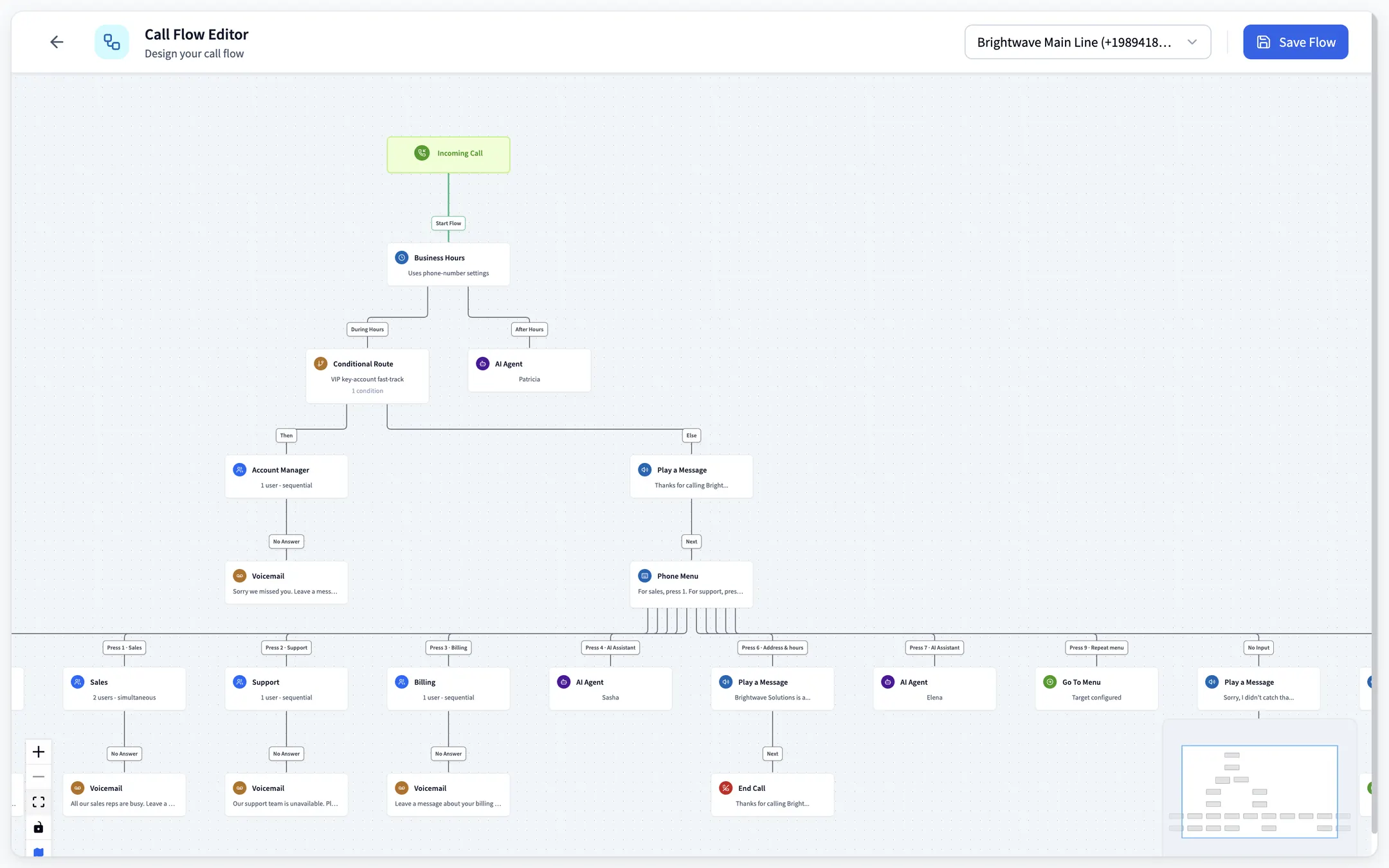
Callers choose with their keypad. Each key can ring a team, go to voicemail, play a message, open a sub-menu, or check your business hours first.
For bilingual lines, a recorded audio file in each language is the simplest route. The IVR menu docs cover every setting. If you want the after-hours scripts above to play only at night, put a Business Hours step in front of the menu.
When an AI agent should answer instead of a phone tree
Every script above shares one limit: a phone tree only routes. It can't answer "are you open Saturday?" or "how much is a drain cleaning?" It just decides who gets asked.
That's fine when every caller needs a person. It isn't when half your calls are the same three questions, or a booking. For those, give one option to an AI agent instead of a voicemail box.
In dialnote, any Phone Menu key can hand the call to an AI voice agent that answers from your business info, collects the details you ask for, and books on Calendly or Cal.com. Agent calls are billed through the AI call pack. Ray's team now sends after-hours option 1 to an agent that takes the unit number and the problem, then transfers true emergencies to the on-call tech.
Your menu still matters. A good auto attendant gets callers to the right place, and sometimes the right place is an agent that can answer the question. When no one can answer at all, the menu's last stop is voicemail, so pair it with one of our business voicemail greeting examples.
Turn your phone menu into a front desk
10-day free trial, no credit card needed.
Frequently asked questions
An IVR script is the exact wording your phone menu plays when it answers: the greeting, each option and its key, and what happens if a caller presses nothing. It's the same thing as an auto attendant script. Good ones take under 20 seconds to read out.
Name the business, then go straight to the options: "Thanks for calling [Business]. For sales, press 1. For support, press 2. To reach the front desk, press 0." Skip "your call is important to us." Callers want the right person, not reassurance.
Keep the spoken part of the main menu under 20 seconds, which is about 30 to 50 words. Keep the welcome to one sentence, offer three to five options, and put the most common reason for calling first.
Say you're closed, give the hours you reopen, and offer one urgent route if you have one, such as an on-call line. Then send everyone else to voicemail or a callback request so the call isn't wasted.
In some phone systems, yes. In dialnote, any Phone Menu option can hand the call to an AI agent that answers questions and collects details. It needs the Team plan or above, and callers still choose with the keypad.

Written by
Upasana Sahu
Senior Digital Marketing Specialist, SmartReach.io
Upasana Sahu is a Senior Digital Marketing Specialist at SmartReach.io with over 10 years of experience in content marketing, SEO, and digital strategy. She manages end-to-end blog operations, from content creation and on-page/off-page SEO to traffic...
Upasana Sahu is a Senior Digital Marketing Specialist at SmartReach.io with over 10 years of experience in content marketing, SEO, and digital strategy. She manages end-to-end blog operations, from content creation and on-page/off-page SEO to traffic...
Related Articles
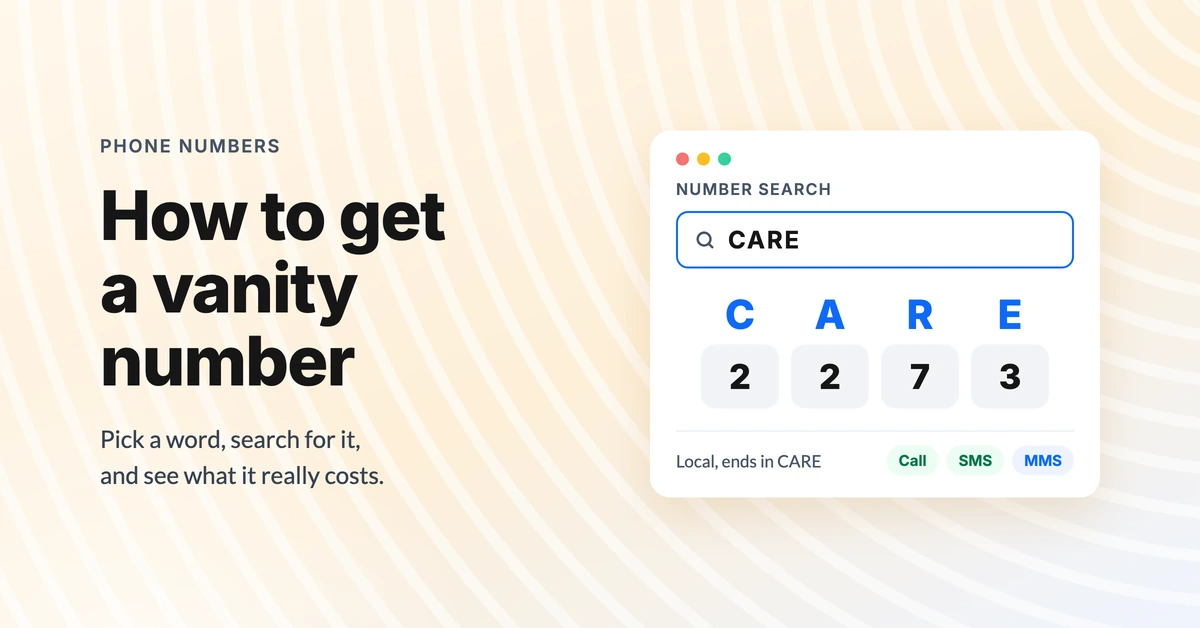
How to get a vanity phone number (and what it costs)
Learn how to get a vanity phone number for your business: pick a word, choose local or toll-free, search for one and see what sellers charge.
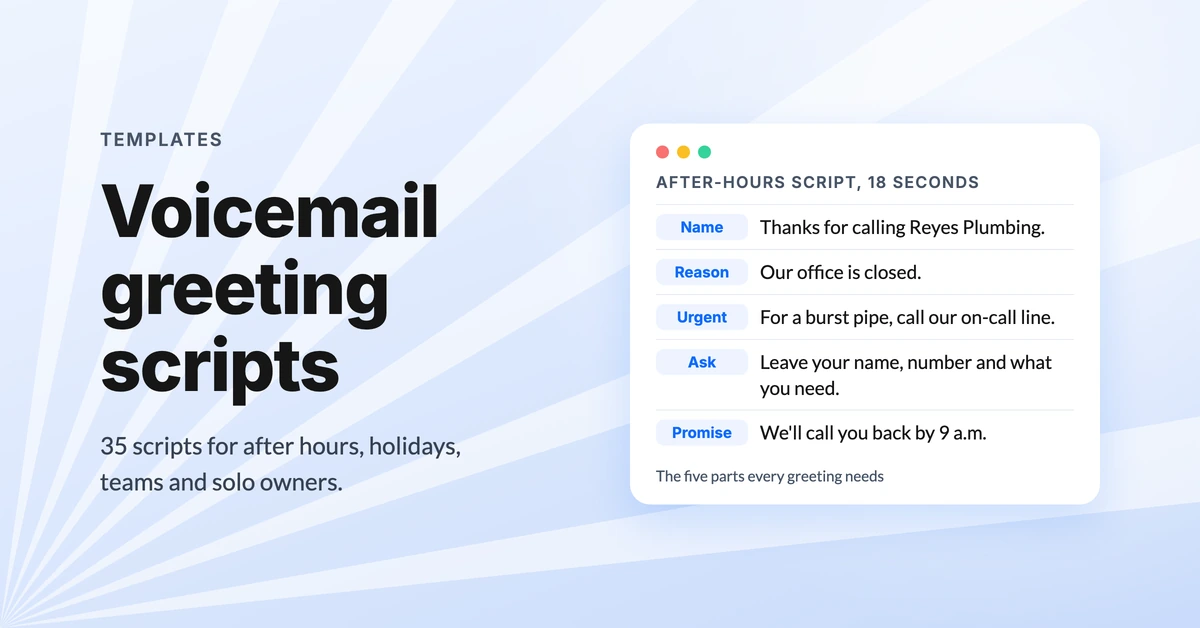
Business voicemail greeting examples (35 scripts)
Copy 35 business voicemail greeting examples for after hours, holidays, departments and small teams, plus what to say so callers leave a message.
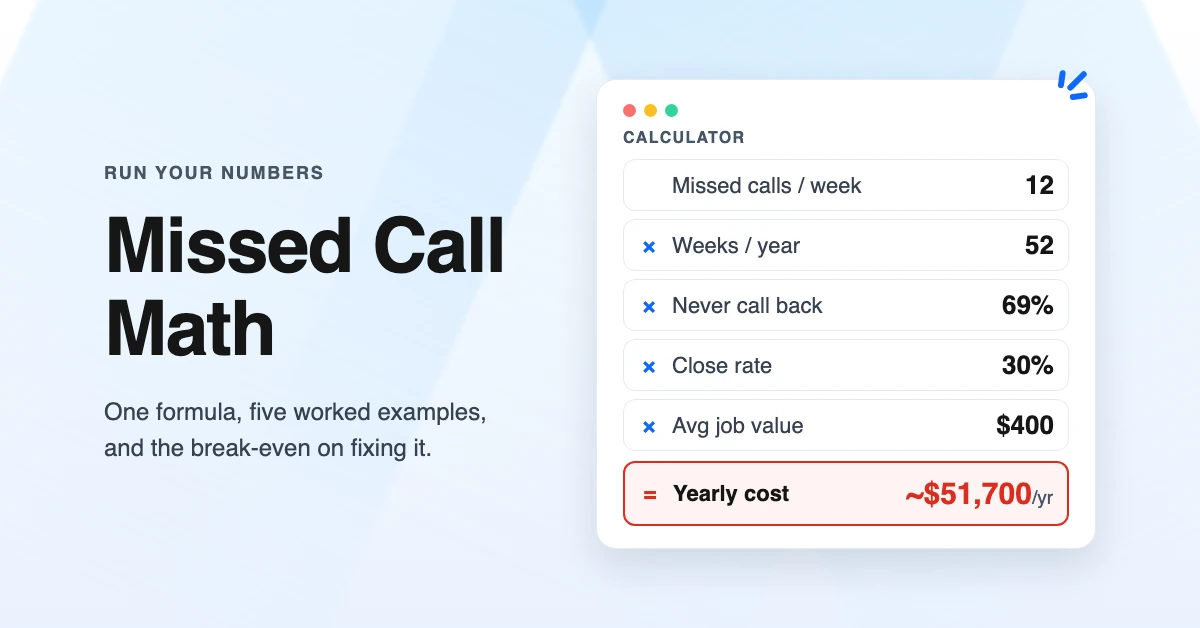
The Cost of Missed Calls: Calculator and Worked Examples
Calculate the cost of missed calls for your business with a simple formula, five worked examples by industry, and the break-even point for fixing it.