dialnote connects with popular CRM platforms so your call data flows automatically. No more copying call notes or manually logging activities—everything syncs in the background while you focus on conversations.
Supported CRMs#
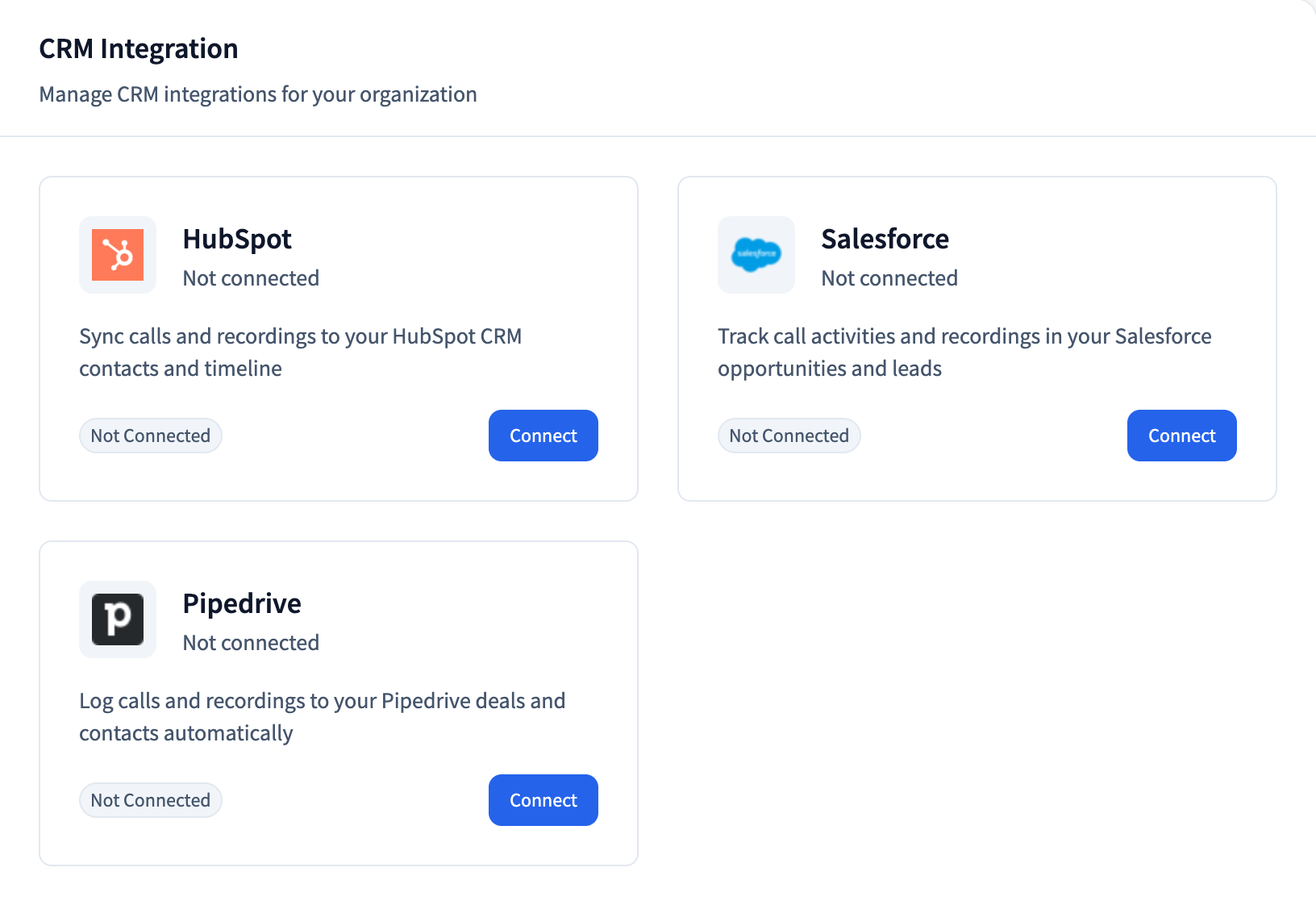
dialnote integrates with three major CRM platforms via OAuth authentication:
| CRM | What Syncs |
|---|---|
| HubSpot | Calls, recordings, and contacts sync to your HubSpot timeline |
| Salesforce | Call activities and recordings sync to leads and opportunities |
| Pipedrive | Calls and recordings log automatically to deals and contacts |
Choose your sync type
Each CRM integration lets you choose between syncing call logs OR call recordings—not both at once. This prevents duplicate entries in your CRM.
How CRM Sync Works#
Once connected, here's what happens automatically:
- Calls complete → dialnote sends call data (duration, direction, outcome) to your CRM
- Recordings finish → Recording links and transcripts sync to the contact's timeline
- Contacts import → With auto-sync enabled, CRM contacts import into dialnote every 6 hours
The sync runs per phone number. You can enable CRM sync on some numbers while keeping others private—useful if you've got personal lines mixed with business lines.
Sync is one-way for each direction: contacts flow from your CRM into dialnote, while call activity flows from dialnote into your CRM. dialnote doesn't create new contacts in your CRM and doesn't push contact edits back.
Calls log against existing CRM contacts
dialnote attaches each call to the matching CRM contact by phone number. If the caller's number isn't already a contact in your CRM, that call won't appear there. Turn on Auto Contact Sync (below) or add the contact in your CRM first.
Connecting Your CRM#
Getting connected takes about a minute:
- Go to Settings → Integrations
- Find your CRM and click Connect
- Sign in to your CRM account when prompted
- Grant dialnote the permissions it needs
- You'll return to dialnote with your CRM connected
Admin permissions
Most CRMs require admin access to authorize third-party apps. If you see an error, check with your CRM administrator.
Configuring Event Settings#
After connecting, choose what data to sync:
- Call logs — Sends call completion data (who called, how long, what happened)
- Call recordings — Sends recording links when recordings finish processing
- Inbound SMS and Inbound MMS — Sends messages people text to your numbers
- Notes — Sends conversation notes your teammates write
These are checkboxes, so tick any combination. Unticking everything pauses syncing while keeping the connection. You'll find them in Settings → Integrations → [Your CRM] → Event Settings.
Recording sync requirement
To sync recordings, you must have call recording enabled on your phone numbers. Check your phone number settings if recordings aren't appearing.
Phone Number Selection#
Not every phone number needs CRM sync. After connecting your CRM:
- Open Settings → Integrations → [Your CRM]
- Scroll to the Phone Numbers section
- Toggle the switch next to each number you want synced
Numbers you don't toggle won't send any data to that CRM. This gives you fine-grained control over what gets logged where.
Auto Contact Sync#
Want your CRM contacts available in dialnote? Enable auto-sync:
- Go to your CRM's settings page in dialnote
- Find Auto Contact Sync and toggle it on
- Contacts sync every 6 hours automatically
When auto-sync runs, it:
- Creates new contacts in dialnote for CRM contacts you don't have
- Updates existing contacts if CRM data changed
- Skips duplicates based on phone number matching
You'll see the last sync time displayed so you know data's flowing.
Disconnecting a CRM#
If you need to remove a CRM connection:
- Go to Settings → Integrations → [Your CRM]
- Click Disconnect in the top right
- Confirm when prompted
Disconnecting removes all sync settings for that CRM. Historical data already synced to your CRM stays there—dialnote doesn't delete anything from your CRM. Your per-number toggles are remembered, so reconnecting later picks up where you left off.
Troubleshooting#
A few things to check if data isn't flowing:
- Calls aren't showing in the CRM — Confirm the phone number is toggled on, the right event type is enabled, and the caller exists as a contact in your CRM.
- Recordings aren't syncing — Recording sync needs call recording turned on for that number, and recordings sync only after processing finishes.
- Contacts stopped importing — Auto Contact Sync runs every 6 hours. dialnote keeps trying on the next run if a sync partly fails, so give it a cycle before reconnecting.
dialnote refreshes your CRM login automatically in the background. If a connection breaks for good, disconnect and reconnect to re-authorize.
Next Steps#
Ready to set up a specific CRM? Check out the detailed guides:
- HubSpot Integration — Connect your HubSpot account
- Salesforce Integration — Set up Salesforce sync
- Pipedrive Integration — Configure Pipedrive logging