Your contacts are the heart of your phone system. dialnote keeps each customer's calls, messages, and notes tied to one record, so you always know who you're talking to and what happened last time.
The Contacts Page#
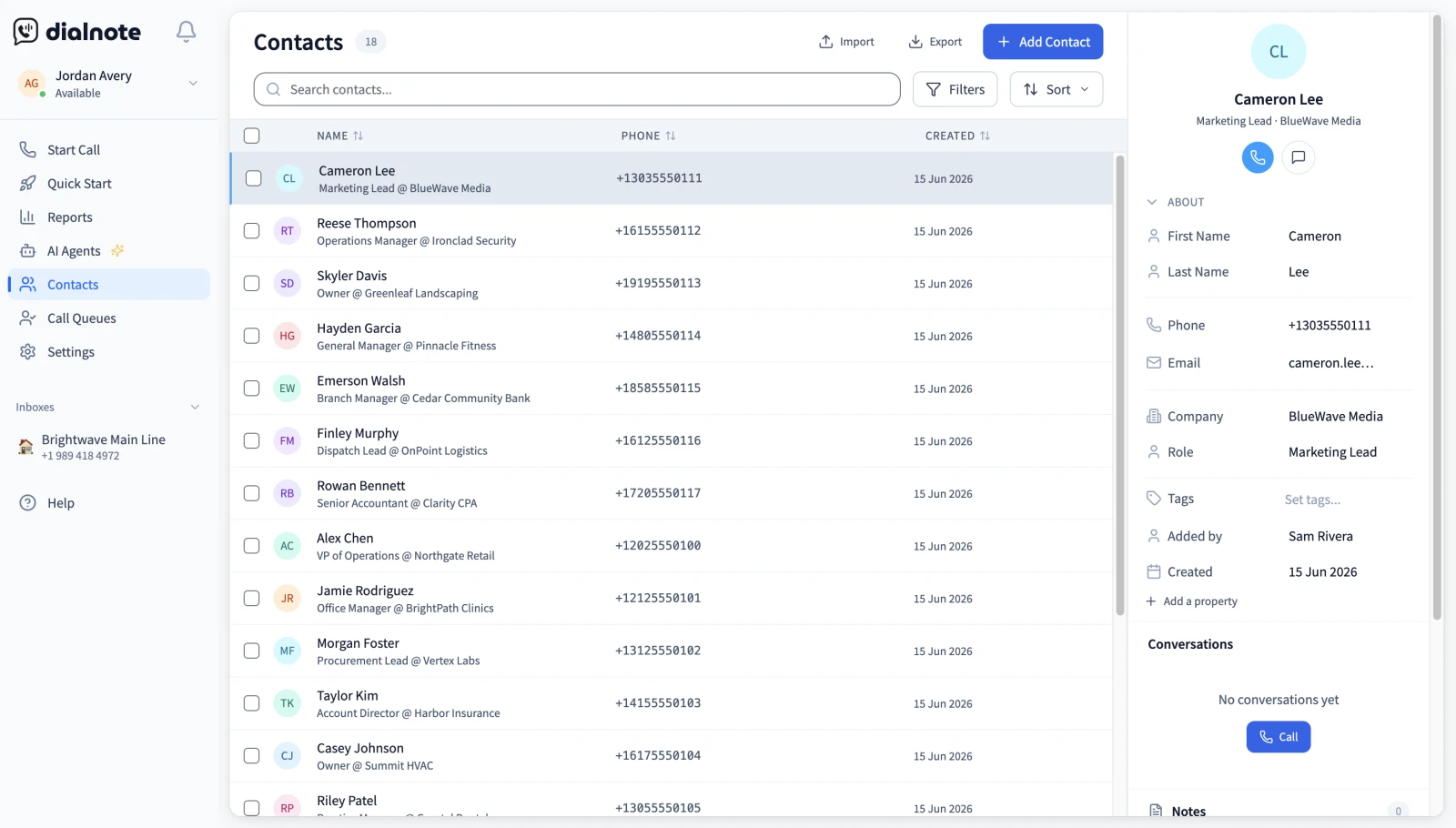
The contacts page shows everyone in your organization in one searchable list. Each row keeps things simple:
- Avatar and name - The contact's name, with company and job title underneath
- Phone number - The contact's number (or email, if there's no number)
- Date added - When the contact was created
- Quick call - A call button to dial the contact right from the list
The list loads more rows as you scroll, so it stays fast even with thousands of contacts.
Click any row to open the contact panel on the right.
The Contact Panel#
The panel pulls everything about one contact into a single scrollable view—no tabs to switch between. From top to bottom you'll find:
- Header - Name, plus buttons to start a call or send a message
- About - The contact's details, editable inline (except Added by and Created)
- Conversations - This contact's inbox conversations (calls, voicemails, and texts), newest first
- Notes - Internal notes your team adds about the contact
To edit a detail, click into the field and type. Press Enter or click away to save, or press Escape to cancel. There's no save button.
Quick actions
Use the call and message buttons in the panel header to reach a contact. If you have one dialnote number, the call starts right away. With several, the dialer opens with their number filled in so you can pick which number to call from. The message button opens your latest conversation with them in the Inbox, or a new message if you haven't talked yet.
Contact Fields#
Every contact has a small set of built-in fields:
- Phone number (required)
- First and last name
- Company and job title (labeled Role in the panel)
Anything beyond that—like a lead status, a source, or VIP tags—is set up as a custom property. Custom properties are defined once for your whole organization, so the same fields show on every contact.
You can create custom properties as text, number, date, yes/no, URL, single-select, or multi-select. A single-select works well for a status field; a multi-select works well for tags. Property labels can be up to 30 characters.
Status, source, and tags are custom properties
dialnote doesn't ship a fixed pipeline status or tag list. You build the ones that fit your business as custom properties, then fill them in per contact. If you don't have any yet, the About section offers one-click suggestions (Lead Status, Tags, Source, and Follow-up Date) that create the property for your whole organization. See Tags to set up labels.
Search and Filters#
Use the search bar to find contacts by name, email, phone number, or company. Search runs on the server, so it works across your whole list, not just the rows on screen.
For sharper queries, open Filters and build rules. You can filter on any built-in field or custom property, and the operators match the field type:
- Text: equals, contains, is empty, is not empty
- Number: equals, greater than, less than, ≥, ≤, between, is empty, is not empty
- Date: on, before, after, between, is empty, is not empty
- Select: equals, is any of, is empty, is not empty
- Multi-select: contains any of, contains all of, is empty, is not empty
- Yes/no: equals (true or false)
The Filters button shows a badge with the number of active rules.
Bulk Actions#
Tick the checkboxes next to contacts to act on several at once. A bulk action bar appears with options to:
- Set Property - Update a single-select or multi-select property (like status or tags) on every selected contact. For multi-select, the values you pick are added to the existing ones
- Export Selected - Download the chosen contacts as a CSV
- Delete Selected - Remove the chosen contacts
Deleting is permanent
Deleted contacts can't be recovered, and the delete confirmation says so. Export a backup first if you might need the data later.
What's Next#
- Adding contacts - Create contacts manually or import from CSV
- Tags - Organize contacts with custom labels
- Import and export - Move contact data in and out of dialnote
- Inbox - See conversations tied to each contact