A2P 10DLC is the carrier program that decides whether your business texts get delivered in the US. It isn't optional, and unregistered traffic gets blocked. dialnote submits everything to the carriers for you, so you won't deal with the carriers or The Campaign Registry directly.
This guide is the reference for how registration works underneath: what brands and campaigns are, the limits that apply to your account, and what to do when something gets rejected.
Start with the quickstart
You probably don't need this page to register. The A2P quickstart collects everything in one form and runs the whole process for you. There's no separate brand wizard to go looking for: that one form is the only way a brand gets registered, resumed or fixed. This page is the reference for what's happening underneath it.
Brands and campaigns#
Registration has two halves.
Your brand is your business identity. It tells carriers who's sending. You get one brand per dialnote workspace, and registering it is free.
Your campaign describes what you're actually texting about. Carriers vet each one separately, and a campaign is what your phone numbers get attached to. This is the part that carries a fee.
Your brand has to be approved before any campaign can be submitted. On the quickstart path, dialnote handles that sequencing for you.
What you're allowed to register#
Self-serve registration covers the conversational and transactional messaging that most businesses need. Five use cases are available:
- Customer Care - support conversations, appointment reminders, follow-ups
- Account Notifications - account updates, billing alerts, service notices
- Delivery Notifications - shipping updates, delivery confirmations, tracking
- Two-Factor Authentication (2FA) - verification codes and login confirmations
- Low Volume - low message volume across mixed use cases, at the lowest throughput tier
Marketing campaigns aren't self-serve
Promotional messaging, along with charity, political, emergency, K-12 and sweepstakes use cases, needs a vetted Standard Brand. Carriers reject these on an unvetted brand almost every time, so dialnote routes them through support instead of taking your fee for a near-certain rejection. Contact support if that's what you need.
How many campaigns you can run#
| Registration type | Campaigns |
|---|---|
| Sole Proprietor | 1 |
| Low Volume Business | 3 |
Hitting the cap doesn't mean you're stuck. Support can move you to Standard Brand registration for more.
Throughput limits#
Low Volume Business isn't the Standard tier
Your business type and your carrier tier are two different things, and it trips people up. Low Volume Business is what you pick in the form: it just means you're a registered company with a tax ID, as opposed to a sole proprietor. The tier is what carriers register you at, and self-serve always registers the Low-Volume Standard tier.
So picking Low Volume Business gets you around 2,000 messages a day, not 200,000. The full Standard tier opts into extra carrier vetting and is support-led. The tier only changes throughput, never your fees.
The form used to label this option "Standard Business", which had people expecting full Standard throughput. It's the same registration, named honestly.
Carriers set your sending limits based on your registration tier and trust score. These are approximate, and carriers revise them.
| Registration type | Daily messages | Messages per second |
|---|---|---|
| Sole Proprietor | 1,000 | 1 |
| Low Volume Business | 2,000 | 15 |
| Standard (support-led) | 200,000 | 225 |
Limits are per brand
Your daily limit covers your whole registration, not each campaign. A Low Volume Business gets around 2,000 messages a day whether it's running one campaign or three. Normal per-message rates apply on top.
What the compliance page shows you#
Settings → A2P Compliance shows one thing at a time: whatever your next step actually is. There's no advanced mode to switch into, and nothing collapsed at the bottom of the page.
| What you'll see | When |
|---|---|
| Set up business texting, with a Get started button | Your workspace has no brand yet |
| A Business texting progress card | Your registration is with the carriers |
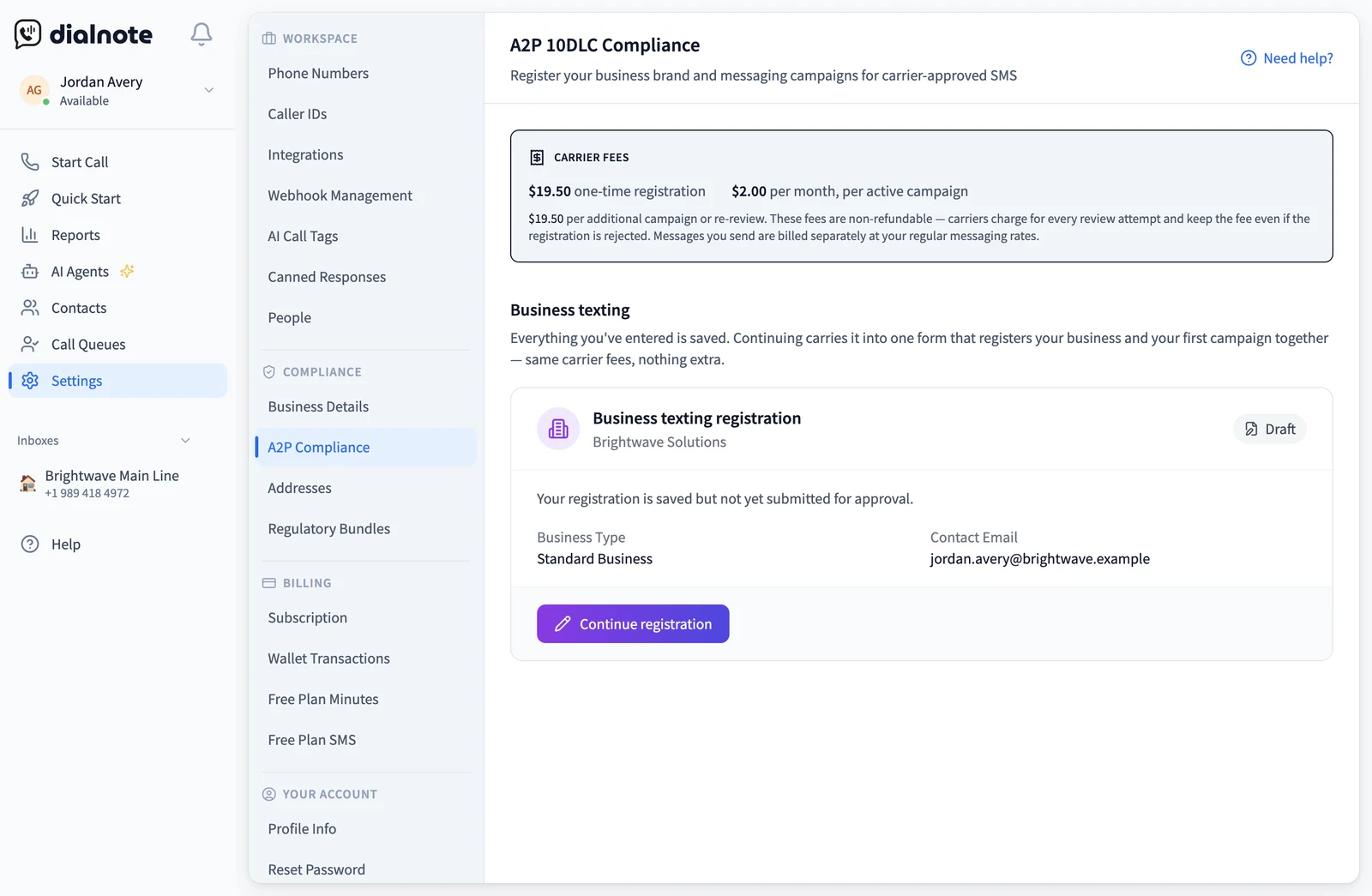
| A Business texting registration card with Continue registration, Edit Details, Try Again or Refresh Status, plus the carrier fees | Your brand came from an older flow and has no campaign yet |
| Your business details, plus Set up texting for me | Your brand is approved but has no campaign yet |
| The Messaging Campaigns section | Your brand is approved and already has at least one campaign |
The carrier fees are disclosed next to whichever action spends money, so you always see the amount before you commit.
Your brand details#
There's one brand form, and it's the quickstart. Resuming a draft, fixing a rejection or confirming details you already gave all open that same form, prefilled with your answers. Continue registration, Edit Details and Fix & resubmit are the buttons that get you there.
What you can change depends on where the brand is:
| Brand status | Business details |
|---|---|
| Draft, Failed, Rejected | Editable. Correct what the carriers flagged, then resubmit |
| Submitting, Pending, In Review | Read-only. The carriers already have them |
| Approved, Suspended | Read-only. dialnote reuses the approved identity as it is |
Locked fields are greyed out rather than hidden, so you can still read what's registered against your business. The campaign's terms and conditions URL, sample messages and consent description stay editable throughout, because they belong to the campaign rather than the brand.
Two things reject registrations most often
Your tax ID has to match your official business records exactly, and it needs to have been issued at least 30 days ago.
Writing your own campaign#
dialnote generates a customer care campaign for you, which covers support conversations, reminders and follow-ups. If you need a use case it doesn't cover, like account or delivery notifications, you can write a campaign yourself.
The Messaging Campaigns section appears once your brand is approved and you have at least one campaign. Add Campaign then asks how you want to set it up:
- Set it up for me generates carrier-ready messages from your business details, the same way your first campaign was built.
- Write my own messages opens the 4-step campaign form.
You'll only get that choice while dialnote hasn't already generated a campaign for you and you're under your campaign cap. Otherwise Add Campaign goes straight to the form. At your campaign cap, Add Campaign is disabled and a notice points you to support. Editing an existing campaign's content opens the same form.
The 4-step campaign form#
Step 1, use case. Pick from the five self-serve use cases above, then write a campaign description between 40 and 4,096 characters explaining what you'll send and why.
Step 2, sample messages. Add 2 to 5 messages that represent what you'll really send, each between 20 and 1,024 characters. At least one has to include your business name, and all of them need opt-out instructions like "Reply STOP to unsubscribe". You can use placeholders such as {name}, {date}, {company} and {order_id}.
Step 3, consent. Describe how people opt in, in at least 40 characters, for example "Checkbox on website contact form". Set your opt-out instructions, which default to "Reply STOP at any time", and your help instructions, which default to "Reply HELP for support".
Step 4, review and submit. The review step shows the fee before you commit. See what A2P registration costs.
Better approval odds
Use full domain URLs in your samples instead of link shorteners. Carriers treat shortened links as suspicious, which slows down or blocks approval.
Attaching phone numbers#
Registration is per campaign, but carrier coverage is per number. A number only delivers SMS once it's in the campaign's sender pool. Without that, sends get rejected.
For a campaign dialnote generated for you, eligible numbers are attached automatically and there's nothing to do here. A campaign you wrote yourself is attached by hand. Any US local number you buy later is attached automatically to your most recently approved campaign, whichever kind it is.
The section appears once a campaign is approved. Each eligible number shows Attach, or Covered with a Detach option, or a note that it's covered by another campaign. Only US local numbers are eligible. Toll-free numbers go through a separate toll-free verification flow, reachable from the verification link on the number's card.
Sole proprietors get one number
A sole-proprietor campaign can cover exactly one number, a carrier rule rather than a dialnote limit. Once you attach one, the other Attach buttons are disabled. A Low Volume Business has no app limit and can attach every eligible number it owns.
Don't leave a campaign with no numbers
A campaign that has no number attached for 30 days is deactivated and removed at the carrier, with a nudge at 14 days. Carriers charge a steep monthly penalty for a registered campaign that isn't sending from anything. Detaching temporarily is fine, that's what the window is for, and attaching any number resets it.
Statuses#
Brands and campaigns share the same set:
| Status | What it means |
|---|---|
| Draft | Saved but not submitted, still editable |
| Submitting | dialnote is building and sending your submission |
| Pending | Submitted and waiting for processing |
| In Review | Carriers are actively reviewing |
| Approved | Done. Campaigns can now send |
| Rejected | The carrier reviewed it and declined. It stays here, with the reason, until you resubmit |
| Failed | The submission never reached the carrier. Retrying is free |
| Suspended | The registration was deactivated and removed at the carrier. See below |
Approval times: brands take 1 to 5 business days, campaigns take 7 to 21 days. Click Refresh Status on the dashboard to check.
Suspended means it's gone, not paused
A suspended campaign isn't waiting on a carrier decision. dialnote deactivates campaigns and removes them at the carrier when a subscription is cancelled or expires, when an account is deleted, or when the $2.00 monthly fee goes uncollected through the full grace window. Getting back to sending means registering the campaign again, including the $19.50 and the carrier wait.
Your brand survives all of this. It's never deleted, so you only re-register the campaign.
If you get rejected#
The status card shows the carrier's rejection reason. A rejected campaign's card also gives specific tips for that reason, with Edit and Resubmit buttons. For a rejected brand, Fix & resubmit (or Edit & resubmit when support is advised) reopens the quickstart form with your existing answers in it, so you only change what the carrier flagged.
Brand rejections can be resubmitted three times at no charge, and the card counts down how many you have left. After that you'll need to go through support, because each attempt registers a fresh brand with the carriers.
Campaign rejections can be resubmitted at no charge: you edit the rejected campaign and resubmit it. Internal failures where the submission never reached the carrier retry for free.
Opt-outs and help keywords#
dialnote handles these automatically, before any auto-reply or AI agent sees the message.
- STOP, STOPALL, UNSUBSCRIBE, CANCEL, END or QUIT opts someone out
- START, UNSTOP, SUBSCRIBE or YES opts them back in
- HELP or INFO sends your support message
These match the full message body and aren't case sensitive.
While registration is pending#
Your US numbers can't send business texts until the campaign is approved. dialnote blocks composition rather than letting messages fail silently, so you'll see a notice in the composer and in the inbox with a link through to your compliance settings. The same block applies in the mobile app.
Numbers outside the US
A2P 10DLC is a US carrier program. For a UK mobile number or another country, you'll set up a regulatory bundle instead.
Next steps#
- A2P quickstart - the one-form path most businesses should use
- What A2P registration costs - fees, refunds, and monthly billing
- Regulatory bundles - required for some non-US numbers
- Sending SMS - start texting once your campaign is approved
- Phone numbers - buy and manage the numbers you'll register