CRM phone integration: connect calls to your CRM
Your phone rings. The number's not saved. You answer with a plain "Hello?" and burn the first minute asking who's calling and what they bought last time. A CRM phone integration closes that gap by linking every call to the customer record you already have. Sound familiar?
That small gap between your phone and your CRM costs more than an awkward hello. It costs notes nobody writes down, follow-ups that slip, and deals that quietly go cold.
TL;DR:
- A CRM phone integration connects your business phone to your CRM so callers are recognized and calls log themselves.
- It kills manual data entry: after each call, the duration, outcome, AI summary, and tags save to the contact record automatically.
- Native connections cover HubSpot, Salesforce, and Pipedrive, plus 5,000+ apps through Zapier.
- Setup runs through Settings, not a developer ticket, and takes a few minutes per CRM.
- The payoff is context on every call and a CRM that's actually up to date.
What is a CRM phone integration?
A CRM phone integration is a link between your phone system and your CRM that shares data both ways. When a call comes in, you see who's calling. When the call ends, the details save back to the record without anyone typing them.
Think of it as a two-way bridge. One side carries who's calling into your softphone. The other side carries what happened back into your CRM. No copy-paste, no second screen, no "I'll log it later" that never comes.
The best versions do three jobs: they recognize the caller, they log the call on its own, and they attach the story of the call (notes, summary, recording) to the right record.
Why disconnected phone and CRM systems cost you
Disconnected systems cost you unlogged calls, missed follow-ups, and pipeline reports you can't trust. The bill never arrives as one line item, which is why most teams never total it up.
Here's the quiet tax in practice. Your reps sell on the phone, but their notes live in their head until end of day. Then they guess.
Meet Priya, who runs a five-person sales team. Her reps make around 40 calls a day each. On a good week, maybe 60% of those calls get logged, and the notes are thin. When a customer calls back, nobody knows what was promised. Priya can't see which deals are moving, and her pipeline reports are basically fiction.
The research backs her frustration. According to Salesforce's State of Sales research, reps spend only about a third of their week actually selling, and HubSpot's sales statistics roundup pegs active selling at roughly two hours a day. The rest goes to admin, data entry, and hunting for context. Isn't that the exact busywork a CRM phone integration is built to erase?
When your phone and CRM don't talk:
- Reps waste the first minute of every call asking for context they should already have.
- Call notes get lost or never written.
- Follow-ups fall through because no task got created.
- Managers fly blind on activity and pipeline.
- Customer history stays full of holes.
What should a CRM phone integration do?
A good CRM phone integration should recognize callers, log every call on its own, and land the notes and summary on the right record. Everything else is nice to have.
Here's what to look for when you're comparing options:
- Caller recognition: the phone knows who's calling before you answer, because your CRM contacts sync over. Some vendors call this a screen pop; whatever the name, the point is context at the first ring.
- Automatic call logging: duration, time, and outcome save to the contact record on their own.
- Notes and summaries sync: what you captured on the call lands on the record, not a sticky note.
- Recording links: the logged call points at the recording, so anyone can hear the source instead of trusting a half-remembered recap.
- Workflow triggers: a finished call can kick off a follow-up task, a Slack ping, or a spreadsheet row through an automation tool.
- Click-to-call: some integrations also let you dial straight from the CRM page instead of retyping numbers.
Workflow triggers matter more than they look. A logged call with no next step is just a record of the past. A logged call that spawns a follow-up task is a pipeline that moves.
Some phone systems push this further with AI. AI call summaries can write the recap for you and drop it on the contact, so your whole team reads what happened in seconds instead of scrubbing a recording.
Which CRMs can you connect?
dialnote connects natively with HubSpot, Salesforce, and Pipedrive, and reaches 5,000+ more apps through Zapier. It's a cloud-based VoIP phone system that runs your calls, texts, and AI receptionist from the browser, so your phone and CRM finally share one source of truth.
Here's how the current connections shake out:
| CRM | How it connects | Available from | Best for |
|---|---|---|---|
| HubSpot | Native | Team ($49/mo) | Marketing-led teams tracking the full funnel |
| Salesforce | Native | Business ($99/mo) | Larger sales teams with custom pipelines |
| Pipedrive | Native | Business ($99/mo) | Lean sales teams that want simple deal stages |
| 5,000+ other apps | Zapier triggers | Team ($49/mo) | Follow-up tasks and niche tools |
Teams on dialnote respond 30% faster once their calls and records live in one flow.
What actually lands in your CRM after each call?
One clean activity on the matching contact: the call's direction, duration, and outcome, plus the AI summary, tags, and a link to the recording. Notes you write sync too.
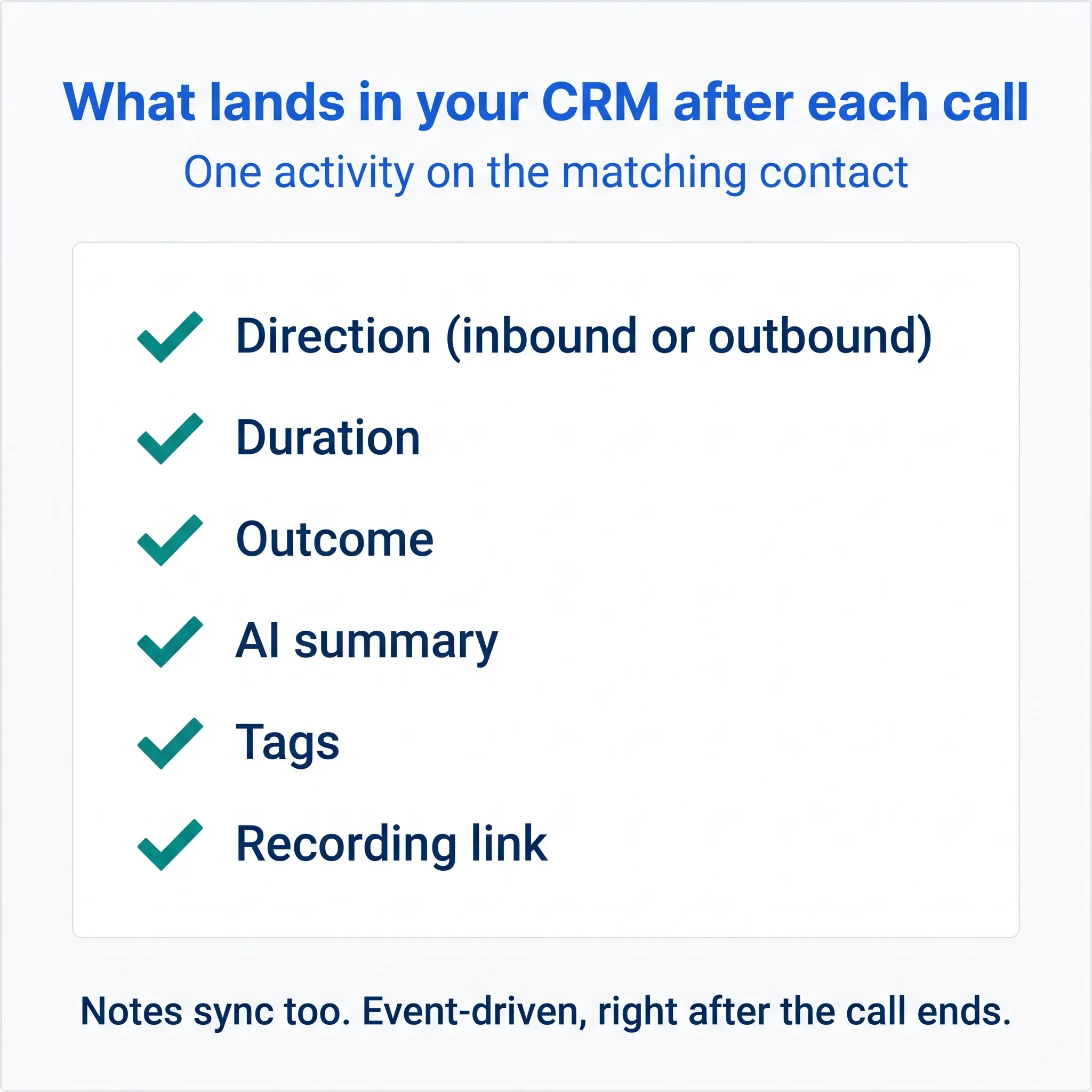
There's no flood of half-empty records. Each completed call logs as a single enriched activity, so the contact's timeline reads like a story instead of a junk drawer. In HubSpot, calls land as engagements on the contact. In Salesforce, calls and notes arrive on the activity timeline, and Pipedrive gets call activities with notes alongside.
The sync also runs the other way. A contact pull brings a chosen CRM list into dialnote, so callers are recognized by name from the first ring. That's how the "who's calling" half of the bridge works: not magic, just your own data showing up where the phone can use it.
Remember Stan, the classic sales ops story? He builds a call activity dashboard, then discovers 40% of the data is missing because reps logged calls by hand, or didn't. Automatic CRM call logging closes exactly that hole, because the record writes itself whether or not the rep remembers.
Two honest limits worth knowing. The integration never creates new contacts or deals on its own; it logs to records that already match. And it's an after-call sync, so the record fills in when the call ends, not while you're still talking.
You can also flip sync on or off per phone number. Handy if your sales line should log everything but a personal number shouldn't.
How to set up your CRM phone integration
Setting up a CRM phone integration in dialnote doesn't need a developer. You connect the CRM in Settings, approve access, and run a test call. Here's the short path:
- Go to Settings → Integrations in your dialnote dashboard.
- Pick your CRM from the list and click Connect.
- Authorize access through OAuth, so dialnote never sees or stores your CRM password.
- Turn on call sync for the phone numbers that should log calls.
- Pull in the CRM contact list you want recognized on inbound calls.
- Make a test call and watch the activity appear on the contact.
That's it. Most teams finish in a few minutes per CRM. No spreadsheets, no import scripts, no IT ticket sitting in a queue for a week.
Want to double-check the connection worked? Call your own cell, hang up, then open the contact in your CRM. The call should be sitting there with a timestamp and a summary.
What does a CRM phone integration cost?
In dialnote, CRM sync is included in the plan price. HubSpot starts on the Team plan at $49/mo, and Salesforce and Pipedrive join on the Business plan at $99/mo.
There's no per-seat math to do, since plans are flat with unlimited seats. Zapier and the Calendly and Cal.com scheduling connections also start on Team. Webhooks and the REST API, the door Make and n8n come through, arrive with Business at $99/mo and Pro at $199/mo.
The Solo plan at $19/mo skips integrations entirely. If the CRM connection is the reason you're reading this, start at Team.
And you don't have to guess whether it fits your stack. The 10-day free trial previews every integration with no credit card required, so you can wire up your CRM before you pay anything.
What if your CRM isn't on the native list?
Zapier usually bridges the gap without code. dialnote's Zapier connection reaches 5,000+ apps, and Make or n8n can hook in through webhooks and the REST API.
The Zapier app ships two triggers: a new call log and a new call recording. Either one can set off whatever the receiving app supports, like creating a task in your CRM, posting a summary to Slack, or adding a row to a sheet. Note the direction, though. Zaps flow out of dialnote; they don't push data into it.
Developers get more room. Webhooks send three signed events (call completed, recording ready, note created) to as many endpoints as you like, and the REST API covers contacts, calls, recordings, and reports across 41 endpoints. More native connections are on the roadmap, but nothing above waits on them. The full integrations page lists every connection and the plan it ships on.
Getting more out of the integration
A live connection is step one. The teams that get real value tune three things: which contacts sync, which numbers log calls, and who actually reads the AI summaries.
Pull the right contact list. Sync the CRM list your callers actually live in, not the whole database, so the phone recognizes the people who matter and skips the noise.
Match the sync to each number. Per-number toggles mean your main line logs every customer call while a testing line or personal number stays quiet. Your CRM stays clean instead of collecting clutter.
And review your AI summaries. We can't promise the recap nails every detail; it's right most of the time, and a rep who adds one line of nuance turns a good record into a great one. We're not sure why, but summaries seem to get read more when reps skim them the same day. Maybe fresh memory fills the gaps.
Pair the integration with a call analytics dashboard and you'll spot patterns you couldn't see before, like which kinds of calls actually move deals forward.
It's not just for sales teams
Support and account teams often gain more than sales does. Every caller shows up by name, and every conversation leaves a record the next person can read.
Picture a support rep picking up. The caller's name is already on screen because the contact synced over, and the last few call summaries sit one click away in the conversation history. No "can you repeat your account number?" The customer feels known, and the call runs shorter.
Account managers win too. When a client rings, past calls, notes, and texts sit in one thread. After the call, the CRM record carries the summary and recording link for anyone who checks the account later. You stop scrambling and start sounding prepared.
Here's the before-and-after in plain terms:
| Task | Without integration | With integration |
|---|---|---|
| Know who's calling | Guess, or ask | Contact recognized by name |
| Log the call | Manual, often skipped | Automatic |
| Write the summary | Typed after the call | AI-drafted on the record |
| Create a follow-up | Sticky note or memory | Zapier task from the call log |
The pattern is the same across every role. Less typing, fewer gaps, and a record you can actually trust when you run reports at the end of the month.
CRM integration mistakes to avoid
The most common mistakes are syncing a messy CRM, expecting the integration to create deals, and telling nobody on the team what changed. All three are cheap to prevent.
- Syncing dirty data. Duplicate contacts mean call logs attach to the wrong record. Merge duplicates before you connect, not after.
- Expecting record creation. The sync logs to contacts that already exist. A brand-new lead still needs a human or a Zapier workflow to create the record first.
- Keeping the rollout secret. Reps who don't trust the sync keep typing notes by hand, and now you're paying twice for the same data. Show the team a synced record on day one.
- Treating it as a process fix. Clean data makes a good sales process faster. It can't invent one for you.
None of these are reasons to wait. They're just the difference between a rollout that sticks in a week and one that limps for a quarter.
Is a CRM phone integration worth it for a small team?
Yes, and honestly it pays off faster for small teams than big ones. With fewer people, one dropped follow-up is a bigger slice of your pipeline, so the automatic logging earns its keep almost right away.
Here's my strong opinion: manual call logging is a waste of your reps' time, full stop. Every minute a rep spends typing what a tool could capture is a minute not spent selling. If you run a sales team on VoIP, the integration isn't a nice-to-have. It's the whole point of putting your phone in the cloud.
How much time you'll get back, though, we can't say exactly. It depends on your call volume and how bad the logging habit is today. What we can promise is the direction: less typing, cleaner records, and reports you don't have to caveat.
Will it fix a broken sales process on its own? No. The data gets cleaner, but you still have to act on it. Clean records just make the acting a lot easier.
How long does a CRM phone integration take to set up?
For most small teams, connecting your phone system to your CRM takes an afternoon, not a project plan. You authorize the connection, turn on sync, and run a test call to confirm the activity lands. There's rarely any hardware involved with a cloud setup.
Start small. Turn on automatic call logging, live with it for a week, then add the contact pull and your first Zapier follow-up workflow once the team trusts the basics. A staged rollout beats flipping every switch at once and hoping it sticks.
Connect your calls and your CRM
A phone that knows who's calling, and a CRM that fills itself in, isn't a fantasy. It's a setting you flip on in an afternoon.
See how dialnote's calling features tie your phone and CRM together, then start a 10-day free trial with no card required. Your next caller shows up with full context, and your reps get their afternoons back.
Questions about connecting your CRM? Reach the team at support@dialnote.com.
Frequently asked questions
No. In dialnote you connect HubSpot, Salesforce, or Pipedrive from Settings, authorize with OAuth, and make a test call. Most teams finish in a few minutes per CRM, with no code and no IT ticket.
No. CRM records fill in through event-driven sync after the call ends. During a call, the AI agent can book a meeting, send an SMS, check a calendar, or transfer the caller to a teammate.
No. The sync logs calls and notes to contacts that already match, and a contact pull brings your CRM list into dialnote. To create records from calls, trigger a Zapier workflow from a new call log.
HubSpot sync starts on the Team plan at $49/mo. Salesforce and Pipedrive join on the Business plan at $99/mo. The 10-day free trial previews every integration, no credit card required.
Not as separate records. The sync covers completed calls and notes, each logged as one activity with the AI summary, tags, and recording link attached. Text threads and voicemails stay in dialnote.

Written by
Lancelot Dsouza
Chief Marketing Officer, SmartReach.io
Lancelot Dsouza is the Chief Marketing Officer at SmartReach.io, where he built the Marketing, Sales, and Customer Success verticals from the ground up. With over 25 years of experience spanning digital marketing, business development, and strategic...
Lancelot Dsouza is the Chief Marketing Officer at SmartReach.io, where he built the Marketing, Sales, and Customer Success verticals from the ground up. With over 25 years of experience spanning digital marketing, business development, and strategic...
Related Articles

AI call summaries: never lose a call detail again
See how AI call summaries capture key points, action items, and follow-ups from every call, so your team stops re-listening to recordings for the facts.
dialnote business phone app: work from anywhere
Learn how a business phone app puts your work number, texts, and voicemail on your smartphone so you take calls from anywhere without a second cell.

Team collaboration features for busy phone teams
See how team collaboration features like shared inboxes, warm transfers, and call queues keep your phone team in sync and answering more calls.