Team collaboration features for busy phone teams
Your best rep is already on a call. A hot lead dials the main line. Nobody else sees it ring. Ninety seconds later that lead hangs up and calls your competitor instead.
That gap is exactly what team collaboration features are built to close. When your phone system treats every call as a shared team job instead of one person's problem, far fewer good calls slip through. Sound familiar?
Most small teams start with a single line and a lot of goodwill. It works until it doesn't. Then you're stuck asking who picked up, who promised what, and why three people called the same customer back.
TL;DR:
- Team collaboration features turn a basic phone line into a shared workspace, so any teammate can see, answer, and follow up on calls.
- The core set to look for: shared inboxes, call queue routing, warm transfers with context, presence status, shared call notes, and a team analytics view.
- Shared queues stop the "everyone thinks someone else has it" problem that kills lead response times.
- Warm transfers save your customers from repeating themselves, which is the fastest way to sound like a bigger, calmer company.
- A cloud phone system like dialnote bundles these together on flat plans from $19/mo, with unlimited seats on Team plans and up, so team collaboration features aren't locked behind a per-user upsell.
Why team collaboration features matter for phone teams
Miss a call and you don't just lose one conversation. You lose the deal, the referral, and the trust that came with it. That's the real cost, and it stacks up quietly.
According to a McKinsey report, employees spend nearly 20% of the workweek just looking for internal information or hunting down the right colleague. On a phone team, that's the person muttering "who took the Johnson call?" while the customer waits on hold.
Poor coordination shows up on the customer side too. Salesforce research found that 86% of employees and leaders blame workplace failures on weak collaboration or unclear communication. Phones are where that weakness gets exposed first, because there's no undo button on a live call.
Here's my honest take. Most teams don't have a "we need more reps" problem. They have a "our calls live in six separate heads" problem. Fix the shared visibility and the same headcount handles a lot more.
What are team collaboration features in a phone system?
Team collaboration features are the tools that let a group share calls, context, and follow-ups inside one phone system instead of working from separate personal lines. Think shared inboxes, routing rules, transfers with notes, and a single view of who's doing what.
Solo tools assume one person owns one number. Team tools assume the work moves between people, and they're built so nothing gets dropped in the handoff. That difference is the whole ballgame once you're past two or three people.
The core team collaboration features to look for
Not every feature carries the same weight. These are the ones that actually change how a team works day to day.
Shared team inboxes
A shared inbox puts every call, voicemail, and text for a department in one place the whole group can see. Sales, support, and the front desk each get their own, so calls don't fall through the cracks when one person steps away.
- Voicemails land in a shared queue, not one private mailbox
- Anyone available can pick up the next call
- Follow-ups are visible, so two reps don't call the same lead
- New hires see past context instead of starting blind
Call queue routing
Call queues decide who rings, and in what order, when a call comes in. This is the difference between "it rang once on Dave's phone" and "it found someone in four seconds."
Common routing styles:
- Ring all: every free member rings at once
- Round robin: calls rotate evenly across the team
- Longest idle: the call goes to whoever's waited longest since their last one
Warm transfers with context
A cold transfer dumps the caller on a stranger. A warm transfer briefs your teammate first, so the customer never has to repeat their story. Guess which one makes you sound like a real company?
Instead of "please hold while I transfer you," your teammate picks up already knowing the caller is asking about last week's order. Small change, huge difference in how the call feels.
Presence and status
Presence tells you who's free before you try to hand off a call. Available, on a call, in a meeting, away, do-not-disturb. When status updates automatically from call activity, nobody wastes a transfer on someone who's heads-down.
Shared call notes
Notes attached to a call or contact mean the next person picks up where the last one left off. Tag a colleague, log the promised follow-up, link related calls. This is where deals stop dying in someone's private notebook.
Team analytics
A team view shows call volume, wait times, and where coverage gaps hide. Managers spot the Monday-morning flood or the after-lunch dead zone and staff around it. You can't fix a pattern you can't see.
How do shared inboxes stop missed calls?
Shared inboxes stop missed calls by making every incoming call visible to the whole team, then routing it through a queue until someone free answers, instead of ringing one busy person and rolling to voicemail.
Picture Priya, who runs support for a five-person team. Before, calls hit a single line and bounced to voicemail whenever she was busy. She'd find four missed calls after lunch and spend the afternoon apologizing.
After moving to a shared inbox with round-robin routing, those same calls fan out across the team. The next free person answers, the voicemail queue is shared, and the "sorry I missed you" callbacks basically vanish. Same team, same hours, more calls handled.
If your calls skew toward support, our guide to VoIP for customer support goes deeper on queue and routing setups for busy help desks.
How to set up team collaboration in a business phone system
You don't need a big rollout to get started. A working setup takes an afternoon.
- List your teams. Decide which groups need a shared line: sales, support, front desk, on-call. Keep it simple at first.
- Create a shared inbox per team. Give each one a clear name and the number or extension it should answer.
- Pick a routing rule. Ring-all for small teams, round robin when you want even load, longest-idle for fairness.
- Set voicemail and fallback. Decide where unanswered calls go and who checks the shared voicemail queue.
- Turn on presence. Agree that everyone keeps their status honest, so transfers land on people who are actually free.
- Add call notes and tags. Agree on a few tags so calls are easy to sort and report on later.
Those six steps are the plan, and they work in any team-ready phone system. Two of them are where doing it by hand gets fiddly, so the rest of the walkthrough happens inside an account.
Set up your first shared workspace
10-day free trial, no credit card needed.
Get every call-taker into the workspace
Routing rules only ring people the system knows about. Before queues, presence, or shared notes can do anything, everyone who answers calls needs their own login, their own status, and access to the right numbers. One shared login for the whole team breaks all three.
This is also the step where per-seat pricing quietly kills rollouts. When every new login adds to the bill, teams cut corners: two reps share an account, the part-timer never gets one, and the "shared" inbox only shows half the team what's happening.
dialnote removes that trade-off with the Invite Team Member flow: each invite is one email, and flat pricing ($19 to $199 per month, with unlimited seats on Team plans and up) means the extra login adds nothing to the bill.
- Go to Settings, then People
- Click Invite Team Member
- Enter the teammate's email address
- Pick a workspace role: Member or Workspace admin
- Check the phone numbers to share and set an access level for each
- Click Send Invitation

The invite sits in Pending Invitations until it's accepted, and any numbers you shared activate on their own the moment the teammate joins. The real decision on this screen is the access level per number: Call & text for anyone answering customers, Full access only for whoever owns that number's settings, View only for a manager who just reads the logs. When in doubt, start people as Members and promote later.
Make presence tell the truth
Step 5 above, turning on presence, only pays off if the statuses stay honest. A presence board where Available really means "was available an hour ago" is worse than no board at all, because teammates transfer calls based on it and every wrong dot burns a caller's patience.
Asking humans to flip a status every time they grab coffee fails by Wednesday. Someone forgets, a transfer rings an empty desk at lunch, and the team quietly goes back to shouting across the room.
dialnote keeps the board honest on its own: the availability status switcher sits in the top-left of the sidebar, anyone inactive for 10 minutes flips to Away automatically, and it works the same on every plan from $19 per month.
- Click the status indicator in the top-left of your sidebar
- Pick Available, Away, or Do Not Disturb
- Before you transfer a call, check the Team section of the sidebar and pick someone showing Available
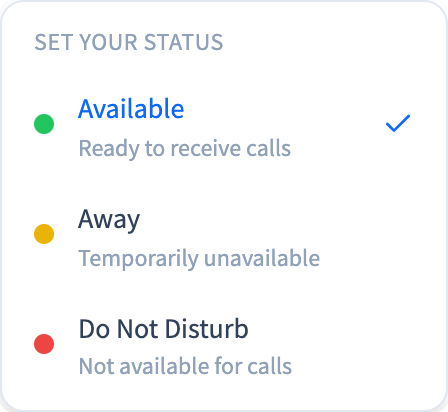
What you're looking at is the filter the queue uses. When a call comes in, only teammates set to Available ring; Away, Do Not Disturb, and On Call get skipped (On Call sets itself during an active call and clears when the call ends). So the team decision is small: agree that Do Not Disturb means real focus time, let auto-away cover the coffee runs, and choose on purpose where calls land when nobody's Available, whether that's the shared voicemail queue or an AI agent that captures the caller's details.
Solo tools vs a team-ready phone system
The jump from personal lines to shared collaboration is where most of the gain hides. Here's the contrast.
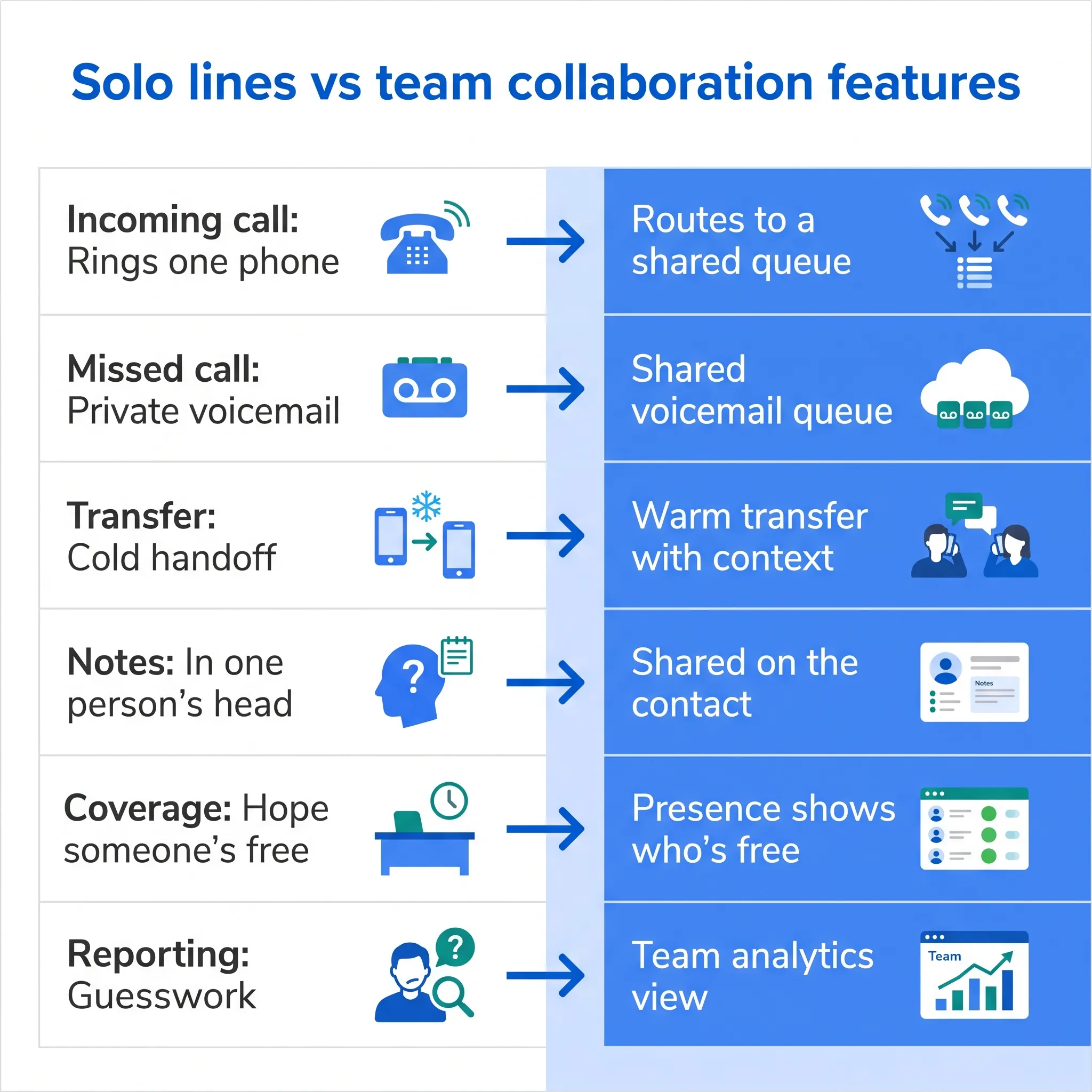
| What happens on a call | Solo lines | Team collaboration features |
|---|---|---|
| Incoming call | Rings one phone | Routes to a shared queue |
| Missed call | Private voicemail | Shared voicemail queue |
| Transfer | Cold handoff | Warm transfer with context |
| Notes | In one person's head | Shared on the contact |
| Coverage | Hope someone's free | Presence shows who's free |
| Reporting | Guesswork | Team analytics view |
When should you switch to team collaboration features?
Switch as soon as a second person starts answering calls. If you wait until missed calls become a visible problem, you've already lost leads you never knew existed, because nobody logs the call that nobody saw.
A few signals it's time:
- You ask "who took that call?" more than once a week
- Customers repeat their story every time a call changes hands
- Voicemail gets checked by whoever happens to remember
- Two people call the same customer back, or worse, nobody does
- Follow-ups live in personal notebooks, and half of them die there
There's a bigger trend underneath this. Research in Harvard Business Review found that time spent on collaborative work has ballooned by 50% or more over the past two decades. Your phone setup either absorbs that load with shared queues and notes, or it quietly adds to it with forwarding chains and "did anyone call them back?" threads.
One caveat. If you're a true solo operation and plan to stay that way, a personal line with an AI answering backup covers you fine. Team features earn their keep the day a second person picks up.
How much does a team-ready phone system cost?
With dialnote, team collaboration features come at a flat monthly price: plans are $19, $49, $99, and $199 per month, and Team plans and up include unlimited seats. Most per-seat providers price the same features per user, so the bill grows with every hire.
That per-user detail matters more than the sticker price. A per-seat plan looks cheap at one user and gets expensive at ten, because queues, transfers, and analytics usually sit in the higher tiers. You end up paying the premium rate multiplied by headcount, just to get the features that make a team act like a team.
Flat pricing flips the math. Adding your eleventh teammate costs the same as adding your third: nothing. Our breakdown of unlimited-seat pricing runs the numbers on why per-seat billing quietly caps team growth.
Two more cost notes worth knowing:
- The 10-day free trial doesn't ask for a credit card, so testing a shared inbox with real calls costs nothing.
- Calling reaches 90+ countries, so a distributed team doesn't need a second provider for international work.
Common mistakes that quietly kill team phone setups
Most failed rollouts share the same handful of mistakes: too many queues, an unowned shared voicemail, stale presence, and cold transfers at the busiest hour. None of them are technical problems. All of them are fixable in a day.
Take Alex, who manages a sales team of 12. When his company moved to shared queues, he built one queue per product line: seven queues for twelve people. Calls bounced between groups nobody staffed, reps drifted back to their personal lines, and within a month the "team" system was a ghost town. He rebuilt it with two queues, new leads and existing customers, and pickup rates recovered in a week.
Watch for these:
- Too many queues. Start with two or three. Split them only when volume forces you to.
- Nobody owns the shared voicemail. Visible to everyone often turns into handled by no one. Rotate a daily owner.
- Stale presence. A status that says available while someone's at lunch burns a transfer and a customer's patience.
- Cold transfers under pressure. The busy hour is exactly when a ten-second briefing saves a five-minute repeat.
- Set-and-forget routing. Volume shifts. Review the queue stats monthly and move people to where the calls are.
We're not 100% sure why, but teams that glance at their queue stats every Friday seem to close coverage gaps faster than teams with cleverer routing rules. Our best guess: what gets looked at gets fixed.
Is this worth it for a small team?
Yes, and small teams often gain the most, because they have the least slack to absorb a missed call. Every dropped lead is a bigger share of the pipeline when there are only a handful of people answering.
There's a real product angle here too. When your phone system already covers this, you're not buying and stitching together three separate apps. That's the case for running it on one VoIP phone system instead of a pile of point tools.
dialnote is an AI business phone system with no per-user pricing. AI voice agents answer calls, capture leads, and book meetings 24/7. Plans from $19/mo. It also works as the shared workspace this post describes: the whole team shares the same numbers and sees the same calls in real time, without a per-user tax that punishes you for growing.
Teams respond 30% faster. That number comes from watching what happens when calls stop living on separate lines: the next free person grabs the call instead of the "right" person missing it.
Keep the context, not just the call
One more feature earns its keep: automatic call summaries. When every call ends with a short written recap the whole team can read, handoffs stop leaking details. Nobody has to remember what was said three days ago.
If that's the part you care about most, our post on AI call summaries walks through how the recap gets written and shared. Pair it with shared notes and your team's memory stops depending on any one person showing up.
So where does your team lose the most calls right now? The main line during meetings? The Friday afternoon rush? Answer that, and the collaboration features you actually need get obvious fast.
Ready to give your team one shared phone workspace instead of six scattered lines? Pick two starting queues, send the invites, and run a week of real calls through the setup above. Questions along the way? Reach us at support@dialnote.com and we'll help you map it out.
Frequently asked questions
A call queue decides who rings, and in what order, when a call comes in. A shared inbox is where the whole team sees every call, voicemail, and text afterward. The queue handles the live moment; the inbox keeps the follow-up visible so nothing gets dropped.
Yes. A cloud phone system runs in the browser and on mobile, so a team spread across cities shares the same queues, notes, and presence view as one sitting in the same office. Distance stops mattering once every call lands in one shared workspace.
Two is enough. The first time one person steps away and a teammate answers with full context, shared queues and notes have already earned their spot. Most teams feel the difference hardest somewhere between three and ten people.
No. dialnote pricing is flat, $19 to $199 per month, and Team plans and up include unlimited seats, so shared inboxes, call queues, warm transfers, and team analytics don't cost more as you add people.
Yes. dialnote comes with a 10-day free trial and doesn't ask for a credit card. That's enough time to set up a shared inbox, wire up a call queue, and run real calls through it with your team.

Written by
Lancelot Dsouza
Chief Marketing Officer, SmartReach.io
Lancelot Dsouza is the Chief Marketing Officer at SmartReach.io, where he built the Marketing, Sales, and Customer Success verticals from the ground up. With over 25 years of experience spanning digital marketing, business development, and strategic...
Lancelot Dsouza is the Chief Marketing Officer at SmartReach.io, where he built the Marketing, Sales, and Customer Success verticals from the ground up. With over 25 years of experience spanning digital marketing, business development, and strategic...
Related Articles

AI call summaries: never lose a call detail again
See how AI call summaries capture key points, action items, and follow-ups from every call, so your team stops re-listening to recordings for the facts.

dialnote business phone app: work from anywhere
Learn how a business phone app puts your work number, texts, and voicemail on your smartphone so you take calls from anywhere without a second cell.

CRM phone integration: connect calls to your CRM
Learn how CRM phone integration links calls to HubSpot, Salesforce, and Pipedrive: automatic call logging, AI summaries on the record, and easy setup.