Call reports show you exactly what's happening on your phone lines. How many calls came in, how many got answered, who's handling the load, and where the gaps are. It's the day-to-day view you'll come back to most.
Where to find call reports#
Click Reports in the left sidebar. The page is titled Analytics, and the main view is your call dashboard. Everything below lives on that page or one click away from it.
You don't need to set anything up first. Once you start making and taking calls, the numbers fill in on their own.
No calls yet?
Before you've logged real calls, the page offers Preview now to see sample data (marked with a SAMPLE DATA badge) or Get started to use your real data. You can open sample data any time with View demo in the header, and leave it with Exit Demo at the bottom right. Outside demo mode, your real numbers appear as soon as calls start coming in.
Overview cards#
At the top of the dashboard, four cards give you the headline numbers for your selected date range:
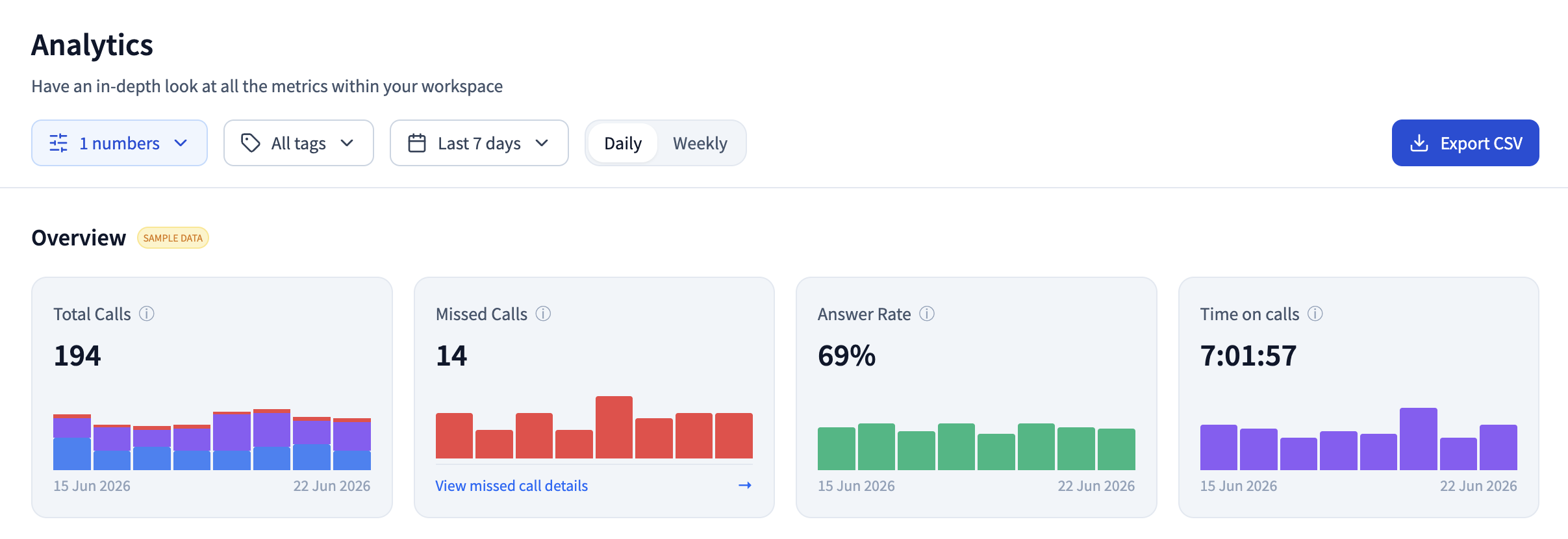
- Total Calls — every inbound and outbound call
- Missed Calls — inbound calls that went unanswered, including voicemails where the caller left no message
- Answer Rate — the share of all calls, inbound and outbound, that got answered
- Time on calls — total time on answered calls
Each card has a mini chart showing the trend across the period. When your missed call rate climbs above 10%, the Missed Calls card turns red as a priority alert so the problem is hard to miss.
Drill into missed calls
The Missed Calls card has a View missed call details link that opens the full Missed Calls report — summary cards, a timeline chart, the most recent missed calls, and a per-agent breakdown.
The Activities table#
The Activities table breaks performance down by team member. Columns are:
- User — the team member
- Total calls
- Outgoing calls
- Answered calls
- Time on calls
- Sent messages
You can sort by Total calls, Outgoing calls, Answered calls, or Time on calls, and each value compares the current period against the previous one so you can spot who's trending up or down. To go deeper, click View Detailed Report to open Team Performance.
Missed Calls report#
The Missed Calls page is built for chasing down dropped calls. It opens with four summary cards — Missed Calls, Missed Rate, Total Calls, and Avg Call Duration — followed by a timeline chart and a list of recent missed calls. Click any entry to open that call's details.
Below that, a Missed Calls by Agent table ranks who's missing the most, with rate colors flagging anyone over 10% (orange) or over 20% (red).
Filtering and exporting#
The filter bar at the top of the dashboard controls every report:
- Phone Numbers — focus on one or more lines
- Tags — filter by AI-generated call tags
- Date Range — Today, Yesterday, Last 7 days, Last 30 days, Last 90 days, Month to date, Quarter to date, Year to date, or a custom range
- Granularity — view the timeline by day or by week
- Export CSV — download your current view
The export saves as analytics-report-YYYY-MM-DD.csv and includes per-agent metrics for the selected range. Your date range and phone numbers carry over when you open a detailed report. Tags carry over to the Missed Calls report but not to Team Performance, and granularity resets to Daily.
Pin the period that matters
Quarter to date and Year to date are handy for reporting cycles. Switch the granularity to Weekly on longer ranges to keep the timeline readable.
What's Next#
- Analytics Overview - The full dashboard and every section it holds
- Team Performance - Agent rankings, response rates, and shared-number analytics
- AI Agent Reports - AI containment, escalation, and sentiment
- Disposition Codes - How calls get categorized and what each code means