Your availability status controls whether you receive incoming calls. When a call comes in, dialnote checks each team member's status and skips anyone on Do Not Disturb or On Call. This means you won't be interrupted during meetings or focus time.
Understanding Status Types#
dialnote has four availability statuses. You set the first three yourself. The fourth, On Call, is set automatically.
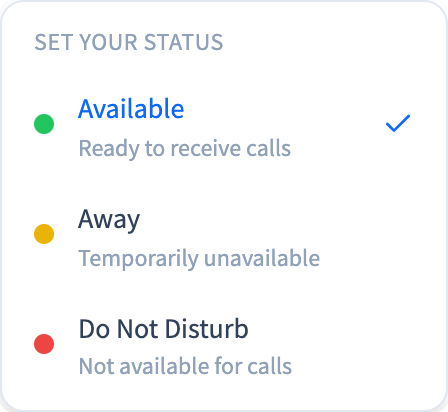
Available (green dot) – You're ready to receive calls. Incoming calls will ring your devices, and you'll appear as available to your team.
Away (yellow dot) – You're temporarily unavailable. When you set Away yourself, simultaneous ring skips you and sequential ring tries you last, but you can still make outbound calls. The system also sets this status when you log out, or when no dialnote tab or app has been open for 10 minutes. A system-set Away still rings like Available.
Do Not Disturb (red dot) – You don't want any interruptions. No calls from your call flows or call queues will reach you until you manually change your status back. A teammate can still transfer a live call to you.
On Call (blue dot) – You're on an active call right now. dialnote sets this for you when a call connects and clears it the moment the call ends. While you're On Call, no new calls ring you, so a second caller won't interrupt the conversation you're already having.
On Call is automatic
You can't pick On Call from the menu — it's a system status, not a manual one. dialnote turns it on when your call starts and switches you back to whatever you were before (usually Available) when the call wraps up.
Quick status change
Click your name at the top of the sidebar, open Set your status, and pick Available, Away, or Do Not Disturb. Your team members can see your current status in real-time.
How Status Affects Call Routing#
When an incoming call reaches a Ring Users step in your call flow, dialnote filters the team members it rings by status. Phone numbers added to the step ring whatever anyone's status is. Here's what happens:
- All recipients Available – Everyone rings simultaneously (or in sequence, depending on your settings)
- Some recipients Away, DND, or On Call – Available teammates and teammates the system set to Away ring. DND and On Call are skipped. Teammates who set Away themselves are skipped on simultaneous ring and rung last on sequential ring
- No one Available – The call follows your fallback action (typically voicemail or an AI agent)
Anyone marked On Call is skipped too, so a teammate who's already talking to someone won't get pulled into a second call. This filtering happens in real-time, so if someone changes their status while a call is ringing, the next incoming call will reflect the change.
For more on how calls reach your team, see Receiving calls and Ring groups.
Automatic Status Changes#
dialnote tracks your activity and automatically manages your status to keep things running smoothly:
Auto-Away: If no dialnote tab or app has been connected for 10 minutes (for example, you closed them all), the system marks you as Away. An idle tab that's still open keeps you Available. Logging out also sets you to Away right away. A system-set Away doesn't stop calls: you still ring like you're Available.
Auto-Return: When you come back and start using dialnote again, the system detects your activity and returns you to Available automatically—but only if the Away status was set by the system. If you manually set yourself to Away or Do Not Disturb, you'll need to change it back yourself.
Manual vs automatic
The system tracks who set your status. If you manually select Away or Do Not Disturb, dialnote won't override your choice when you return. Only system-set Away statuses get automatically cleared.
Viewing Team Availability#
Your team's current availability appears in multiple places:
- Settings → People – Shows a status badge next to each team member, with a filter for each status
- Team Reports – Displays current status alongside call metrics and performance data
- Real-time Updates – Status changes broadcast instantly to all team members in your organization
When someone changes their status, you'll see the update within seconds. This helps you know who's around to handle calls or collaborate on conversations.
Best Practices#
Set DND during focused work – If you need uninterrupted time, use Do Not Disturb rather than relying on Away. It clearly signals to your team that you're not available.
Use DND for breaks – Auto-Away doesn't stop calls while your app is open, so set Do Not Disturb when you step out for coffee. A manual Away works on simultaneous ring, but sequential ring still tries you last.
Check team status before transferring – Before transferring a call to a colleague, glance at their status indicator. A transfer rings them whatever their status is. If they don't answer, a callback appears in the inbox, and the caller goes to voicemail (if the number has it on) or hears a message before the call ends.
Coordinate coverage during off-hours – If your team works different shifts, use status indicators to coordinate who's covering incoming calls. At least one person should be Available during business hours.
What's Next#
- Team overview – Manage members, roles, and invitations
- Receiving calls – How inbound calls reach you and your team
- Ring groups – Decide who rings, and in what order
- Business hours – Route calls differently when you're closed